
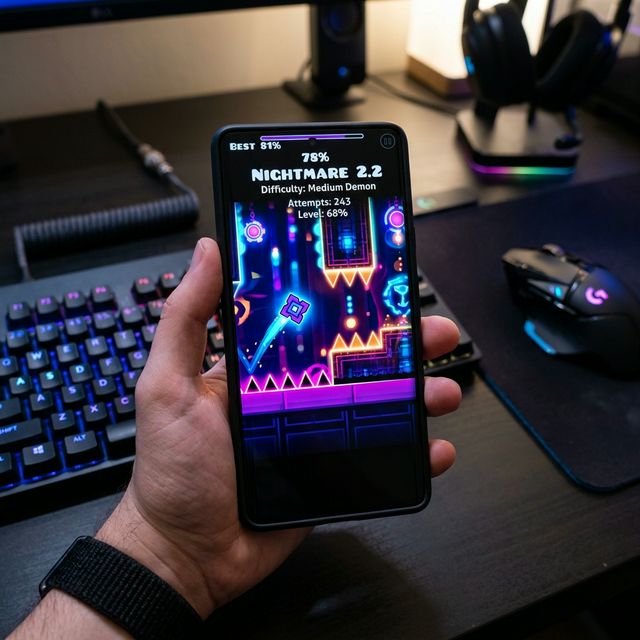
Geometry Dash uses different installation routes on Android, PC, and iPhone. This guide links to the official stores and explains backup and compatibility checks. It is based on published documentation; no hands-on device testing or third-party package certification is claimed.
How to Install on Android (APK)
Install RobTop’s official Android release through Google Play. The full game is paid; Lite is a separate free edition. If you choose a separate APK, identify its publisher and version first. Sideloading does not prove the package is official or unlocked.
Steps:
Review Any Installer Permission:
- Prefer the official store; it does not require unknown-app permission.
- For a separate package, check your device’s app-specific installer settings.
- Keep Play Protect enabled and investigate installation warnings.
- Disable temporary installer permission after installation.
Choose the Correct Source:
Read the Android installation guide. An APK filename or clean scan cannot guarantee authenticity or safety. Check the exact package, publisher, signature, and available evidence before installing.
Install the Game:
For the official release, use Install in Google Play. For a separately sourced package, read the device’s installer prompts and do not proceed past unresolved warnings.
Safety First:
Confirm a usable backup before replacing the app. This guide has not independently certified a downloadable APK, and it does not promise that any file is virus-free.
How to Install on PC (Emulator)
Use Steam for the official native desktop release. An Android emulator is a separate route with different requirements. Our PC guide explains both options.
Steps:
- For native play, install the Steam client and check its current system requirements.
- Find Geometry Dash from RobTop Games in Steam and install the official game.
- If using Android software instead, follow your emulator’s current documentation and verify the package source.
Performance Tip:
Compare a simple stage with the problem level before changing settings. Emulator requirements differ from native game requirements; assigning extra resources does not guarantee better performance.
How to Install on iPhone and iPad (App Store)
Use RobTop’s official App Store listing. Read our iOS guide for compatibility and saved-progress checks.
Important Note:
Android APK files cannot run on iPhone or iPad. An IPA is a different package format; the official App Store route does not require manually finding one.
Step 1: Check the Official Listing
- Open the Geometry Dash listing in the App Store.
- Confirm that the seller is RobTop Games AB.
- Check compatibility and the current local price on your device.
Step 2: Install the Official App
- Purchase or redownload through your App Store account.
- Complete the store’s normal installation prompts.
- Wait for installation to finish, then open the game.
Step 3: Check Your Saved Progress
- On your old device, use Account → Save and confirm it succeeds.
- Sign into the same game account on the new device.
- Use Load when appropriate and check the expected progress.
- Keep the old installation until you have verified the transfer.
Maintenance Tip:
Use the App Store for official updates and check the release notes. Consult RobTop’s account guidance if saving or loading fails.